Cool, so I went ahead and enabled ‘voting’ on posts per a request, only to come back this morning and see someone went through and voted negatively on every post.  No commentary or anything, just a thumbs down and away we go.

Cool, well we can play that game if you like.

I have reset all vote counts, voting now requires you to be logged in and registered (which I need to approve), and now you can’t even vote it down.

So, very mature whoever you are (p.s. I have a hunch who it is) but if you think that’s going to make my day sad, you’re very mistaken.

-M, out.

[UPDATE 2 – Key File inside] – TL;DR – Accounting firm gets Cryptolocker Virus. Tech wipes the server to clean it because he has Carbonite backups. He can’t remember password to the privately managed encryption key file and can’t download the firms backup. Everything lost. : talesfromtechsupport.

Lessons learned.

  1. Never trust a single point of failure.
  2. Backups are only as good as the person maintaining them (see #1).
  3. Never store critical information in only one spot (especially if it’s just your head).

Good grief.  This is the shittiest of the shitty situations.

Today is a good day, and it’s only 10:05am.  Here’s a great tip for those of you who work in I.T. shops and have Dell 5110cn Printers.

You know those pesky transfer rollers?  Yeah, the things that need to be replaced 3x as often as the Imaging Drum they’re often sold with?  Yeah, it turns out that you can re-use them successfully.  I know, I did it myself just today.

Wanna see how?

Continue reading

Hey all,

I did an update to WordPress a few days ago and didn’t pay it any specific mind, but it turns out it fubar’d something internally and made the CSS of the Minimal Theme not work too well.

After about 15 minutes of tinkering, I found the culprit.  To fix it (until they fix it officially, as I’m sure they’ll be working on it soon):

  1. Click Appearance
  2. Click Editor
  3. Click Stylesheet (style.css)
  4. Find the line:

    #content
    {

    float: left;
    padding: 27px;
    line-height: 1.6em;
    text-align: left;

    }

    and change it to:

    #content
    {

    float: left;
    padding: 27px;
    width: 531px;    /* To fix display bug with text running into the sidebar */
    line-height: 1.6em;
    text-align: left;

    }

  5. Click update file.
  6. Done!

Pictures of before and after:

Before:

Bug with Minimal Theme, See the Top Right Corner and Right Edges.

After:

All Fixed!

Wow, so, long story short, when can we get rid of this jackass?  Clearly he’s in the pocket of some media company like TWC or Comcast.  Caps like what he’s proposing are so anti-consumer that it’s beyond ridiculous.

You don’t want cable data caps—but a former FCC chairman does | Ars Technica.

Just, seriously, go away dude.  You’re not welcome here.

So for a while I’ve been trying to roll out an Android Development Environment on my desktop (both at work and at home) so I can start learning to develop applications for Android.  It’s a lofty goal – my programming skills are usually limited to scripting languages like Python and PHP (with some HTML and ASP sprinkled in when I’m bored).  I took Computer Science courses at Rutgers University, so I have a little background in Java which is also helpful.  However, the biggest barrier to me starting Android development has always been getting the IDE setup.  The guides in books (and on the web) have always been out of date by the time I’ve read them.  This might be because Android changes so quickly through it’s iterations.  Who knows.  All I do know is that there is usually no branding on the page to indicate when it was written or the last time it was valid.  This page will be different.

Written: 10/18/2013 – Verified Working: 1/29/2014

Steps To Install:

  1. Navigate to Java SE Downloads.
  2. Click Download below the Java JDK heading.
  3. Accept the license agreement by clicking the Radio Button at the top of the section for the latest kit (for me as of writing Java SE Development Kit 7u45)
  4. Download the installer for your flavor of Windows (or whatever OS you are using).  I downloaded both the x86 and x64 because I wanted to make sure I was covered.
  5. Run the first of the two installers (if you did as I did and downloaded both) which is jdk-7u45-windows-i586.
  6. Click through the installation until it is complete.
  7. Run the second of the two installers which is jdk-7u45-windows-x64.
  8. Click through the installation until it is complete.
  9. Navigate to Android SDK.
  10. Click the “Download for Other Platforms” heading to reveal ADT Bundle and SDK Tools Only.
  11. Select the installer for your flavor of Windows (or whatever OS you are using).  I downloaded installer_r22.2.1-windows. (As of 12/18/13, it is installer_r22.3)
  12. Launch the installer that you downloaded.
  13. Click through the installation (Install for anyone using this computer is recommended) until it is complete.
  14. Start the SDK Manager.
  15. Click the checkboxes next to:
    1. Android SDK Tools (22.2.1, as of 12/18/13 it is 22.3)
    2. Android SDK Platform-tools (18.0.1, as of 12/18/13 it is 19)
    3. Android SDK Build-tools (18.1.1)
    4. Android 4.0 (API 14) — Or whatever API you want if you’d like to have backwards compatibility with older devices
      1. Always keep an eye on the dashboard information provided by Google: Link.  As of writing, 74% of Android devices are running a version of Android > 4.0, so that’s a safe bet minimum to start with.  Dropping down to Android 2.3.3 gets you to 98%, but reduces the feature set immensely).  As of this writing, Android 4.4 (API 19) is available for development, but that accounts for a whopping 1% of devices.
    5. Android Support Repository (2, as of 12/18/13 it is 3)
    6. Android Support Library (18, as of 12/18/13 it is 19)
    7. Google Repository (3, as of 12/18/13 it is 4)
    8. Google USB Driver (8)
  16. Click Install packages…
  17. Accept the required license agreements (or stop here because you can’t go any further).
  18. Wait (for a long time) until the installation is complete.
  19. Setup an AVD:
    1. Launch the AVD Manager from the Start Menu.
    2. Click New…
    3. Type in a name in the AVD Name: field.
    4. Select Nexus 4 (4.7″, 768×1280: xhdpi) from the Device: field.
    5. Select Android 4.3 – API Level 18 from the Target: field (or whatever you selected in Step 15, Substep 4).
    6. Select ARM (armeabi-v7a) from the CPU/ABI: field.
    7. Adjust the Memory Options:, RAM: to 1024.
    8. Adjust Internal Storage: to 1024 MiB.
    9. Adjust SD Card:, Size: to 1024 MiB.
    10. Click the check box next to Use Host GPU.
    11. Click OK.
    12. Select it from the list of AVD’s.
    13. Click Start…
    14. (Optional): If you get an error “Failed to allocate memory: 8” error with an emulator-arm.exe has stopped working message you must go to: C:\Users\<windows username>\.android\avd\<avd name>.avd\config.ini and change the line hw.ramSize=1024 to hw.ramSize=1024MB.  Try restarting the AVD.  It should work.
    15. You may now close the emulator window.  We don’t need it until we setup Eclipse, our IDE.
  20. Navigate to Eclipse.
  21. Download Eclipse Standard (x, as of writing 4.3.1) for your flavor of Operating System.  I selected Windows x64.
  22. Extract the archive to the root of your C drive (it should now be in a folder C:\Eclipse).
  23. Once it is extracted, run eclipse.exe
  24. Create a workspace for your Android development projects.  Typically: C:\Users\<windows username>\workspace\Android.  If all you’re going to do is Android development, go ahead and click the default box.
  25. Once Eclipse loads we need to load the ADT plugins.  Click Help and then Install New Software.
  26. Click Add at the top of the new window.
  27. You can name this new repository whatever you’d like, but the location field must be:
    https://dl-ssl.google.com/android/eclipse/
  28. Once it loads, click the check box next to Developer Tools and then click Next >.
  29. Click Next > again.
  30. Accept the licenses and click Finish.  Let the software install (it will take a small amount of time to download and install it).
  31. Click OK when you get the warning about unsigned content.  It’s ok I promise!
  32. Click Yes when prompted to restart.
  33. Click Yes or No to sending usage statistics.  It’s isn’t required but is helpful.
  34. Click Window and then click Preferences.   Select Android from the list.
  35. Verify that the SDK location is correct and that you have the API level you selected in Step 15 Substep 4.
  36. Now all we need to do is link our AVD to the IDE environment.
  37. Click the X to the top left in the “Welcome Screen” window.
  38. All done!

Testing Your IDE:

  1. Click File, click New, click Project.
  2. Select the Android folder and select Android Application Project.
  3. Fill in the details.
    1. Application Name: is what the application will be called.  For this I used: Testing IDE Settings.
    2. Project Name: typically gets auto-generated, you may leave it alone unless you really want to change it.
    3. Package Name: is usually the application name put after your webhost, if you have one.  For example mine was: org.homenet.talesofatech.testingidesettings.
    4. Make sure the SDK/Compile With settings match.  This is where you determine what the minimum and required levels of the Android version are.
  4. Click Next >.
  5. Uncheck Create custom launcher icon.  Click Next >.
  6. Click Next > again.
  7. Click Finish.
  8. Now we need to link an AVD to this project in the IDE.  Click Run and then click Run Configurations.
  9. Double click on Android Application.
  10. Change the name to Test Configuration
  11. Click Browse and select your project name.
  12. Click the Target tab and click the check box to the left of the name of your AVD.
  13. Click Apply and then click Run.
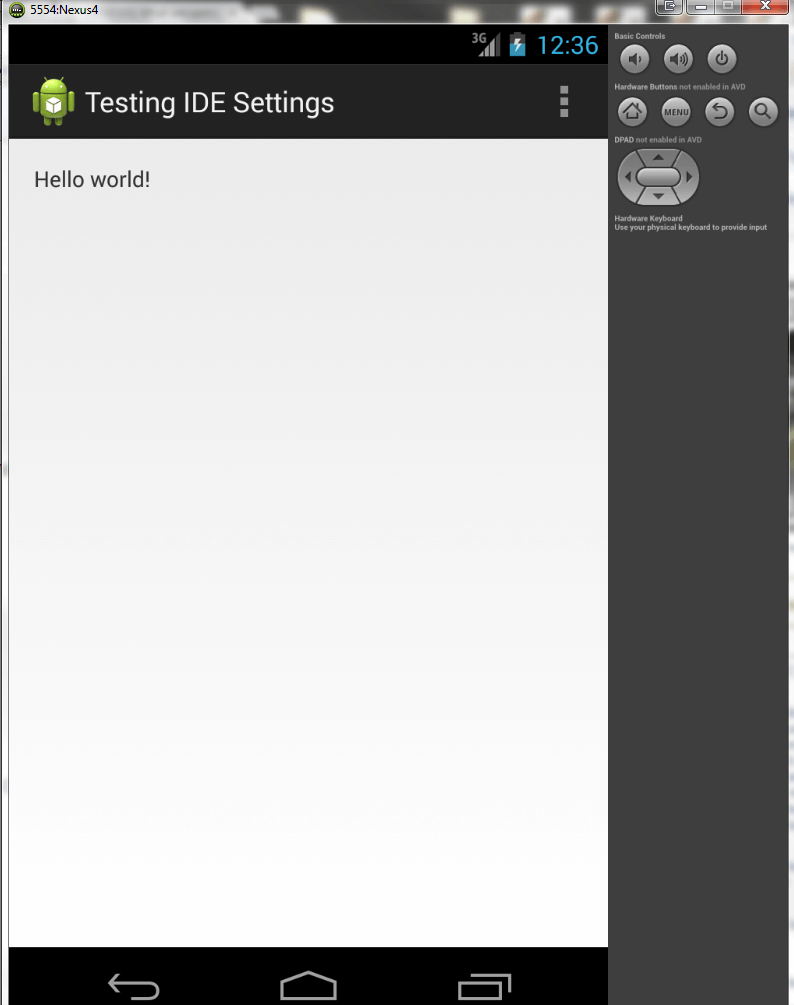
  14. If all is working, you should see the AVD system start up and then load your app, as in the screenshot:Untitled
  15. Note: if you get a message about Logcat, you can click OK.  It’s for troubleshooting and diagnostics, which you’ll probably need later.


So, at our district we have a LOT of projectors.  1 per class room, to be specific.  1 projector and 1 smart board per class room in most class rooms.  It’s an amazing sight.

However, as a direct result of the large number of projectors, we also have a lot of projectors that kick the bucket.

The Dell 2400mp projectors are rock solid.  They last for years and years and years.  When they do kick the bucket, it’s because they have a bad color wheel.  This is an $80 to $100 part, easy to replace and easy to acquire.

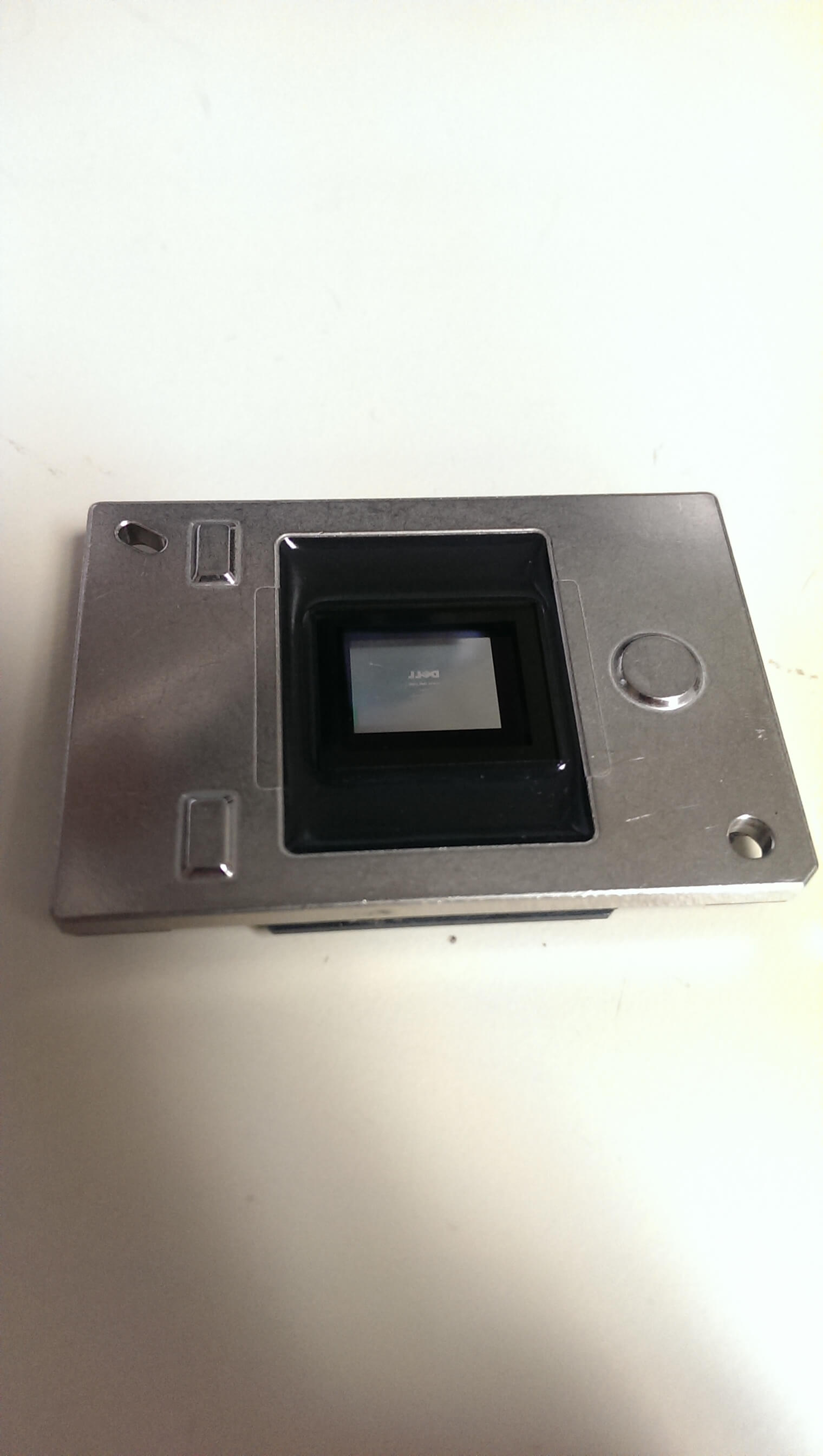
The other projectors we have are Dell 42×0 projectors.  They are the worst pieces of junk we have ever worked with.  When they kick the bucket (and boy howdy do they do it often) it’s because of a bad DMD.  If you don’t know what a DMD is let me explain.  DMD stands for Digital Mirror Display.  It is an array of thousands of tiny mirrors.  Each mirror is controlled separately. As a result, individual failures result in pixelation and spotting on the projector.  This ruins the projector image.  The replacement part is $250 to $300.  It is also not easy to replace.  This makes us sad.

What makes us smile though is just how damn pretty the damn thing is.  Pictures:

2013-10-04 15.14.42 2013-10-04 15.14.50

You can actually see the pixelation on the screen.  You can also see the Dell logo in the center of it, from when we turned off the power while it was still displaying the image.

It’s an awesome little device.  You can see each individual mirror.  The image might not do it justice (phone cam) but trust me.  It’s cool.


http://www.youtube.com/watch?v=6N9pnMbOw0I

So… I just installed my new dashboard mount for my cell phone so I can use it as GPS & Dashboard Camera while driving!  It’s pretty sweet and simple.  It was installed 2 days ago by me and of course Dan because I am an idiot sometimes and break cables. ^_^;

So I’m driving back from a markout at work and BAM what do I see but an idiot run a red light to make an illegal left turn.  He made a left turn while he had a red light, in a no turn on red zone. More traffic follows past him afterwards.

Yeah.

NJ drivers.

CHATHAM drivers, specifically.  Entitled and asshatish.

What a day.

Edit 1: For those who are curious: I am using the DailyRoads Voyager app on my HTC One to record 1080p video.  It records 5 minute video clips (adjustable) whenever I connect it to my car dashboard mount.  It will reach a max file size of ~3 gb before deleting the oldest video file.  You can tell it to keep the video files for an entire trip or delete them all at the end of the trip.  It’s pretty sweet.

-M, out

Lately we’ve been encountering some rather frustrating issues at work.  These issues have been piling up as we’ve been otherwise unable to find a solution to them.  It was beginning to get maddening.

Let’s start from the top:

SPLWoW64 crash with error message: “The program cam’t start because x2utilHL.dll is missing from your computer.  Try reinstalling the program to fix this problem.”  This happened exclusively in 32-bit applications on a 64-bit operating system.  This was a little difficult to figure out, but we think we finally got it.  In our environment users get printers added through a login script that maps printers based on location and user.  That is to say, if I login at building A on device 1a, I get printers X (and if I login on device 2b, I get printers Z) but if I login at building B on device 1b, I get printers C.  At one building we have recently swapped to 64-bit Windows 7.  The problem seemed to start when we got new Xerox multifunction printers.  In looking at the queues on the print server, we see that the 32-bit print driver was not installed.  So we installed it.  The problems have slowly been trickling away.  Of note: we had to completely remove the printers from machines, and then remove any printer ports, and then remove any installed printer drivers.  The next time they logged in the problem went away.  Fingers crossed.

Dell Latitude 2110 not getting WiFi access no matter what.  It was weird.  It had been working for 3 years with no problem, but all of a sudden this morning it wouldn’t connect to any of our secure networks (using a certificate).  We reset winsock, we uninstalled and reinstalled the hardware, we updated the drivers, we did gpupdates, everything we could think of.  We even cleared out DHCP entries on the DCs and white-listed it in the Aruba Wireless Controller to make sure it wasn’t getting black-listed for failed authentication attempts (which we were seeing).  In the error logs we were seeing details about DHCP failed (DHCPNACK).  None of the related google searches seemed to help.  It’s been very frustrating and slow-going.  We restore an image to the netbook and it works 100% fine.  So weird.  There must have been some deep-seated change to the OS that we just weren’t aware of.  Maybe corruption somewhere, since users can’t make system-wide changes.  Very frustrating.  It takes about 2 hours to image and deploy packages to a netbook.  2 hours for what should be a simple fix.  Go figure.  I’m sure there’s an easier method but I’m just missing it.

These were fun challenges to try and figure out.  I love a good challenge.  I even love a good challenge that I can actually complete and figure out.  It’s very rewarding to me.  Helping people as a general rule makes me feel all warm n’ fuzzy inside.

This week has been a good week.  People have been thanking us for our hard work.  That’s a rare treat, and I think I will savor it for the weekend.

It is nice to be appreciated for the effort we put in to our jobs.

I hope you all get the same courtesy at yours.  Enjoy your weekend folks.

-M